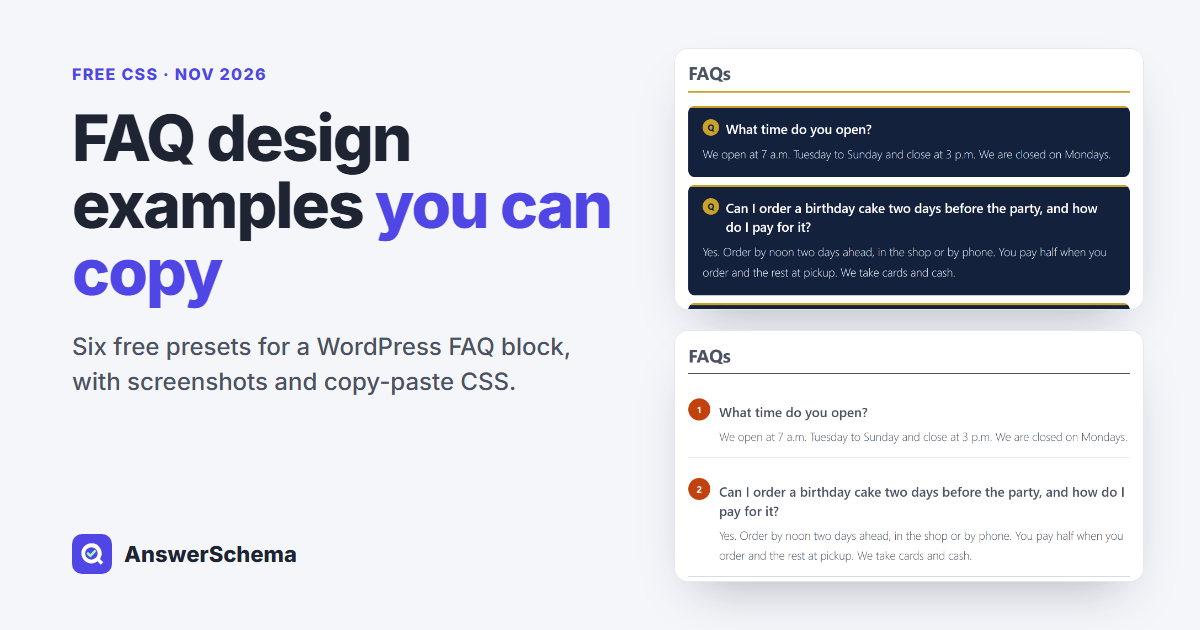
These are six FAQ design examples you can copy for free. Each one is a short block of CSS for the FAQ block of FAQ Schema & AI FAQ Generator, a free WordPress plugin. Set the block’s Display Style, paste the CSS into Customize Style → Custom CSS (advanced) in the block sidebar and update the page. The plugin puts that block’s own id in front of every rule, so the CSS styles that one FAQ block.
Tested on Nov 14, 2026, with plugin version 1.12.1, WordPress 7.1.4 and the Twenty Twenty-Five theme. What we tested: each preset on an FAQ block with three questions, rendered by the plugin on a draft page of this site and opened in Chromium 151 at 1440 and 390 pixels wide, with the device set to light mode and to dark mode. That is 24 runs, and in none of them did any part of the FAQ run past the edge of the block. What we did not test: other themes, other browsers and right-to-left languages.
How do you add a preset to your FAQ block?
It takes four steps in the WordPress block editor. Five of the six presets keep every answer visible, and one is an accordion.
- Open the post or page and click your FAQ block. In the block list it is called FAQ Schema (AI SEO).
- In the block sidebar, open Display Style and set Style (overrides global) to the style named with the preset: Card, Minimal, Numbered or Accordion.
- Open Customize Style, go to Custom CSS (advanced) at the bottom of that panel and paste the preset. No
<style>tags are needed. - Update the page and view it.
Each preset is built on one Display Style, so step 2 matters: the Card presets need Card, and so on. To change a color, edit the hex code in the CSS before or after you paste it.
1. Navy card with a gold line and a round Q
Each question sits in a dark navy card (#14213d) with a gold line across the top and a round gold Q in front of the question. The question is white and the answer is light blue-gray. The card sets its own background and text colors.

Where it goes: block sidebar → Display Style → Style (overrides global): Card, then Customize Style → Custom CSS (advanced).
.mkjb-faq-title { color: inherit; border-bottom: 3px solid #c9a227; }
.mkjb-faq-item { background: #14213d; border: 0; border-radius: 12px; padding: 24px 26px; margin-bottom: 14px; box-shadow: none; }
.mkjb-faq-item:hover { box-shadow: none; transform: none; }
.mkjb-faq-item::before { left: 0; right: 0; top: 0; bottom: auto; width: auto; height: 4px; background: #c9a227; border-radius: 0; opacity: 1; }
.mkjb-faq-question { display: flex; align-items: flex-start; gap: 12px; color: #ffffff; background: transparent; margin: 0 0 10px; }
.mkjb-faq-question::before { content: "Q"; flex: 0 0 30px; height: 30px; border-radius: 50%; background: #c9a227; color: #14213d; font-size: 16px; font-weight: 700; line-height: 30px; text-align: center; }
.mkjb-faq-answer { color: #dbe2f0; background: transparent; }
2. Plain lines
No boxes and no icons: a bold question, the answer under it, and a thin gray line between items. This preset sets no text color of its own. It takes the text color of your page.

Where it goes: block sidebar → Display Style → Style (overrides global): Minimal, then Customize Style → Custom CSS (advanced).
.mkjb-faq-title { color: inherit; border-bottom: 1px solid currentColor; }
.mkjb-faq-item { padding: 22px 0; margin: 0; border-bottom: 1px solid rgba(128, 128, 128, 0.35); }
.mkjb-faq-question { display: block; color: inherit; background: transparent; font-size: 1.15em; font-weight: 700; margin: 0 0 8px; }
.mkjb-faq-question::before { content: none; }
.mkjb-faq-answer { color: inherit; background: transparent; padding-left: 0; }
3. Teal left bar card
A pale mint card (#f0fdfa) with a 6-pixel teal bar (#0f766e) down the left side. Questions are dark teal and answers are slate gray.

Where it goes: block sidebar → Display Style → Style (overrides global): Card, then Customize Style → Custom CSS (advanced).
.mkjb-faq-title { color: inherit; border-bottom: 3px solid #0f766e; }
.mkjb-faq-item { background: #f0fdfa; border: 0; border-radius: 6px; padding: 20px 24px 20px 30px; margin-bottom: 12px; box-shadow: none; }
.mkjb-faq-item:hover { box-shadow: none; transform: none; }
.mkjb-faq-item::before { width: 6px; background: #0f766e; border-radius: 0; opacity: 1; }
.mkjb-faq-question { color: #134e4a; background: transparent; margin: 0 0 8px; }
.mkjb-faq-answer { color: #334155; background: transparent; }
4. Numbered circles
Each question gets a number in a filled circle (#c2410c), and a CSS counter does the counting for you. Questions and answers take the text color of your page.

Where it goes: block sidebar → Display Style → Style (overrides global): Numbered, then Customize Style → Custom CSS (advanced).
.mkjb-faq-title { color: inherit; border-bottom: 2px solid currentColor; }
.mkjb-faq-item { grid-template-columns: 40px 1fr; gap: 4px 16px; padding: 20px 0; border-bottom: 1px solid rgba(128, 128, 128, 0.3); }
.mkjb-faq-item::before { content: counter(mkjb-faq-counter); grid-row: 1 / span 2; width: 40px; height: 40px; border-radius: 50%; background: #c2410c; -webkit-background-clip: border-box; background-clip: border-box; color: #ffffff; -webkit-text-fill-color: #ffffff; font-size: 17px; font-weight: 700; line-height: 40px; text-align: center; letter-spacing: 0; }
.mkjb-faq-question { color: inherit; background: transparent; margin: 7px 0 4px; }
.mkjb-faq-answer { color: inherit; background: transparent; }
5. Two-column split
The question sits on the left and the answer on the right, with a thin line between items. On the 390-pixel phone screen in our test, each answer moved under its question.

Where it goes: block sidebar → Display Style → Style (overrides global): Minimal, then Customize Style → Custom CSS (advanced).
.mkjb-faq-title { color: inherit; border-bottom: 2px solid currentColor; }
.mkjb-faq-item { display: flex; flex-wrap: wrap; gap: 8px 32px; padding: 24px 0; margin: 0; border-bottom: 1px solid rgba(128, 128, 128, 0.35); }
.mkjb-faq-question { display: block; flex: 1 1 220px; color: inherit; background: transparent; font-weight: 700; margin: 0; }
.mkjb-faq-question::before { content: none; }
.mkjb-faq-answer { flex: 2 1 320px; color: inherit; background: transparent; padding-left: 0; }
6. Black outline accordion
The one preset here that folds answers away. Each question is a white box with a 2-pixel black outline and a square plus button, and the open question turns black with white text. To pick which answers start open, use Accordion: Default Open State in the Customize Style panel (All collapsed, First FAQ open or All open).

Where it goes: block sidebar → Display Style → Style (overrides global): Accordion, then Customize Style → Custom CSS (advanced).
.mkjb-faq-title { color: inherit; border-bottom: 3px solid currentColor; }
details.mkjb-faq-item { background: #ffffff; border: 2px solid #111111; border-radius: 0; margin-bottom: 10px; box-shadow: none; }
details.mkjb-faq-item:hover { border-color: #111111; }
details.mkjb-faq-item[open] { border-color: #111111; box-shadow: none; }
summary.mkjb-faq-question { background: #ffffff; color: #111111; padding: 16px 54px 16px 18px; }
summary.mkjb-faq-question:hover { background: #f3f3f3; color: #111111; }
details[open] summary.mkjb-faq-question { background: #111111; color: #ffffff; }
summary.mkjb-faq-question::after { background: #111111; color: #ffffff; border-radius: 0; }
details[open] summary.mkjb-faq-question::after { background: #ffffff; color: #111111; }
.mkjb-faq-answer { background: #ffffff; color: #222222; border-top: 2px solid #111111; padding: 16px 18px 18px; }
What do you need to use these presets?
A WordPress site with the free FAQ Schema & AI FAQ Generator plugin and one of its FAQ blocks on the page. The CSS is written for the class names that block prints, such as .mkjb-faq-item, .mkjb-faq-question and .mkjb-faq-answer. The plugin is described on our home page, and if the answers themselves need work, see how to write FAQ answers.
Need a different design? Tell us what you want
If none of these six fits your site, describe the design you want: the colors, the shape, or a link to a page whose FAQ you like. Post it on the plugin’s support forum on WordPress.org. The forum is public and you need to log in to WordPress.org to start a post. When we add presets, they go on this page. If you would rather have a design made for your own site, see custom FAQ design.
FAQs
Are these FAQ design presets free?
Yes. The six presets on this page are free to copy and change. The plugin they are written for, FAQ Schema & AI FAQ Generator, is free on WordPress.org under the GPLv2 or later license.
Where do I paste the CSS?
Click the FAQ block in the WordPress block editor. In the block sidebar, open Customize Style and paste the CSS into Custom CSS (advanced). Set Display Style to the style named with the preset first, then update the page.
Will the CSS change other parts of my site?
The six presets on this page do not. The plugin adds the id of that FAQ block in front of every selector you paste. In our test on version 1.12.1, a rule written for .mkjb-faq-title came out as #mkjb-faq-2 .mkjb-faq-title, so it applied inside that one block.
Can I use @media rules in the Custom CSS field?
No. In our test on version 1.12.1 we pasted two plain rules and one @media rule. The page printed the two plain rules and left the @media rule out. That is why all six presets are written without @media.
How do I change the colors of a preset?
Edit the hex codes in the CSS. In the first preset, #14213d is the navy card background and #c9a227 is the gold line and the round Q. Replace them with your own colors and update the page.